Project 6: Creativity

ChrisBazzle-Ice

Ice


ChrisBazzle-Cup

Cup


ChrisBazzle-Avocado

Avocado


ChrisBazzle-Leaves

Leaves


My bridge camera couldn’t handle the kind of macro I needed, so I checked out some equipment from the production office.  I used several lens filters to get in close to my subjects.  Once I was close enough to get the kind of texture and detail needed, I spent a fair amount of time playing with my focus, changing things minutely until my subject was sharply in focus.  Once the images were taken, I imported them to Photoshop and cleaned each of them up.


Project 5: Perspective of 12

ChrisBazzle-Collage ChrisBazzle-Knob ChrisBazzle-Pedals ChrisBazzle-Pegs ChrisBazzle-StringsAgain

I got in close for many of these shots.  Because I was shooting indoors with poor lighting, I was forced to turn my ISO up a little.  Another thing I did was give many of the shots a longer exposure time to gather more light.  I tried to get creative and take shots from different or opposing angles, and even got down on the ground for a few.  I did a simple blend for the textured image: I placed the texture over the image then changed the opacity to 40%.

Textures used:

WoodPlanksBare0343_2_M

Project 4: Focus

Shallow Depth of Field:

Branch

ChrisBazzle-Branch


Ceramic Owl

ChrisBazzle-CeramicOwl


Deep Depth of Field:

Garden Walls

ChrisBazzle-GardenWalls


Snowy Gazebo

ChrisBazzle-SnowyGazebo

1. Branch: 01-26-16; 7am; Rexburg -BYU-I courtyard; 10.99mm; f 4.0; 1/800;  Canon SX40 HS
2. Ceramic Owl: 01-26-16; 8am; Rexburg -Home; 6.50mm; f 3.2; 1/5; Canon SX40 HS – Tripod
3. Garden Walls: 01-26-16; 8am; Rexburg -BYU-I garden; 5.27mm; f 8; 1/80; Canon SX40 HS
4. Snowy Gazebo: 01-26-16; 8am; Rexburg -BYU-I garden; 4.91mm; f 8.0; 1/80; Canon SX40 HS


This was an interesting assignment with regard to my camera, because mine doesn’t have very versatile settings.  I had to do a lot of playing around with different settings, ideas, and photo subjects to achieve my goals.  I found it was much easier to set shutter speed and aperture size manually than to use AV mode.  Once I started to get a feel for how those settings worked, it became much easier–and funner–to capture proper images.

Project 3: Light

ChrisBazzle-Pages

  1. Photo title: Pages
  2. Date: 1/19/16, Time: 1:33pm, Place: McKay Library
  3. Focal length: 4.30mm
  4. F/stop: f/2.7
  5. Shutter speed: 1/500
  6. Camera: Canon Powershot SX40 HS

ChrisBazzle-Hair

  1. Photo title: Hair
  2. Date: 1/19/16, Time: 1:15pm, Place: I-Center
  3. Focal length: 4.30mm
  4. F/stop: f/4.0
  5. Shutter speed: 1/500
  6. Camera: Canon Powershot SX40 HS – Flash fired

ChrisBazzle-Hands

  1. Photo title: Hands
  2. Date: 1/19/16, Time: 1:08pm, Place: I-Center
  3. Focal length: 4.30mm
  4. F/stop: f/2.7
  5. Shutter speed: 1/4
  6. Camera: Canon Powershot SX40 HS – Tripod

ChrisBazzle-Ball

  1. Photo title: Ball
  2. Date: 1/19/16, Time: 1:02pm, Place: I-Center
  3. Focal length: 7.22mm
  4. F/stop: f/8
  5. Shutter speed: 1/4
  6. Camera: Canon Powershot SX40 HS – Tripod

I used my wife as the subject for many of these photos.  Working with movement proved difficult with my camera since there is a bit of a delay when shooting.  I shot all of these on campus, then imported them into Photoshop, where I edited light levels, vibrance and saturation, color selection, and sharpness of each photos.  I also cropped several of the photos to improve the focal point.

Photobook

Blog 2-Photobook

I chose a Triadic color scheme for my photobook.  Since my photos had a fair amount of blue and yellow, I complemented those with a red background, then made my text white for increased legibility.  I worked to align my edges properly and create something that was visually appealing.  My objective was to showcase my photography and photo editing skills, as well as tell a bit about myself in the process.

Project 9: Portfolio

Project Corrections / Time Spent: I spent over eight hours redoing my Event Ad, Logo, Letterhead, Business Card, Brochure, Web Page, and Montage from scratch. I also made the following corrections on my flier: I removed the two black lines to free up my white space, I made the body copy smaller, as well as the shaded triangle to free up any trapped negative space.

Message: I want to showcase my work in a professional way.

Audience: Potential clients and employers.

Top Thing Learned: A color scheme can make or break your design!  Choose your colors wisely.

Future application of Visual Media: I will look for opportunities to improve the quality of design, as well as constantly tweaking older projects as my skills increase.

Color scheme and color names: Monochromatic, white

Title Font Name & Category: Atlantic Cruise – Decorative

Copy Font Name & Category: Times New Roman – Serif

Thumbnails of Images used:

Stucco-Wall-Background-5

Sources (Links to images on orginal websites):

http://atextures.com/stucco-wall-background-five/

Project 8: Brochure

FrontP8-ChrisBazzle-Front

InsideP8-ChrisBazzle-Inside

BackP8-ChrisBazzle-Back

Video Showcase

  1. Description:  A two-sided duplex folding brochure.
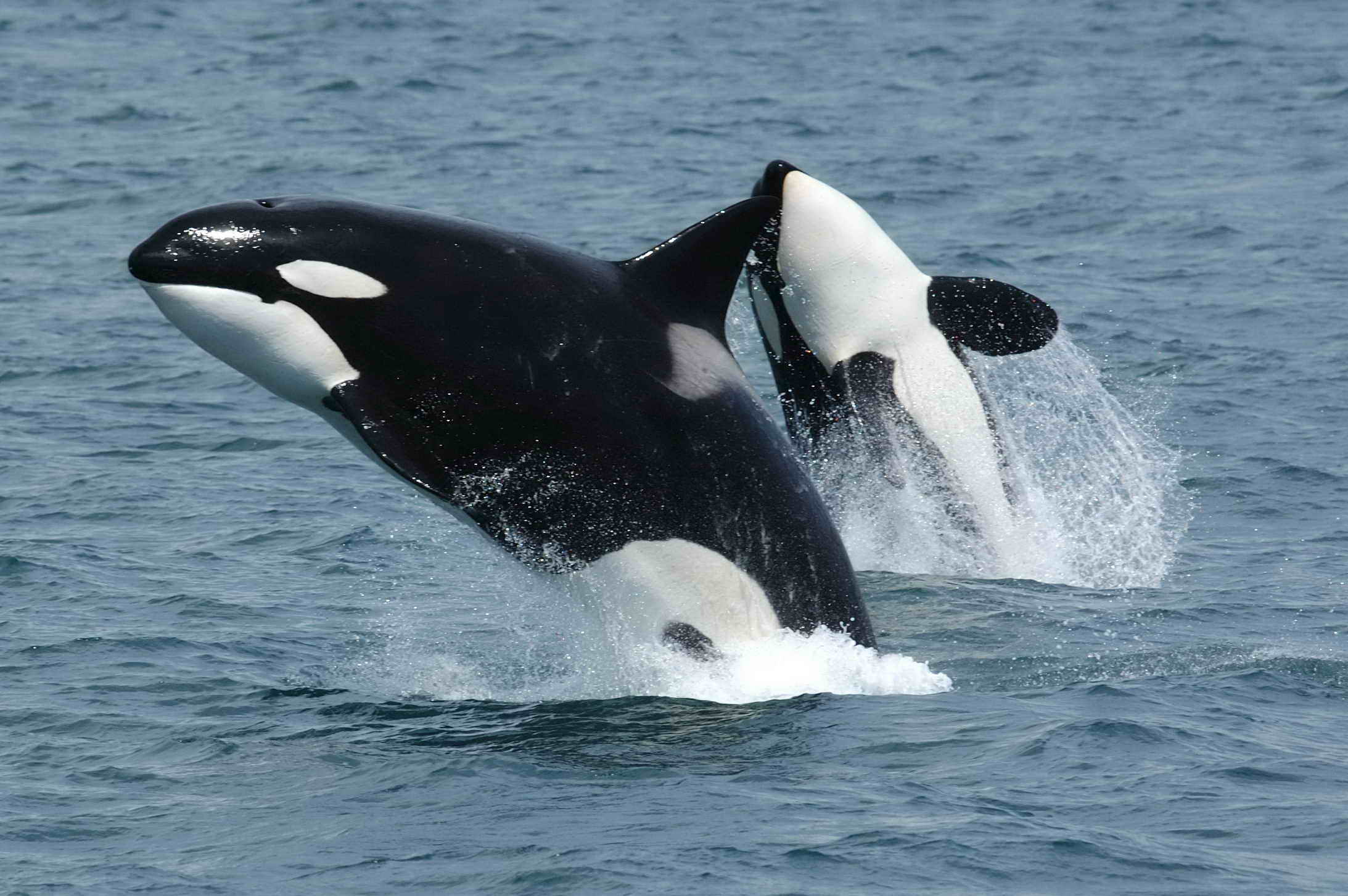
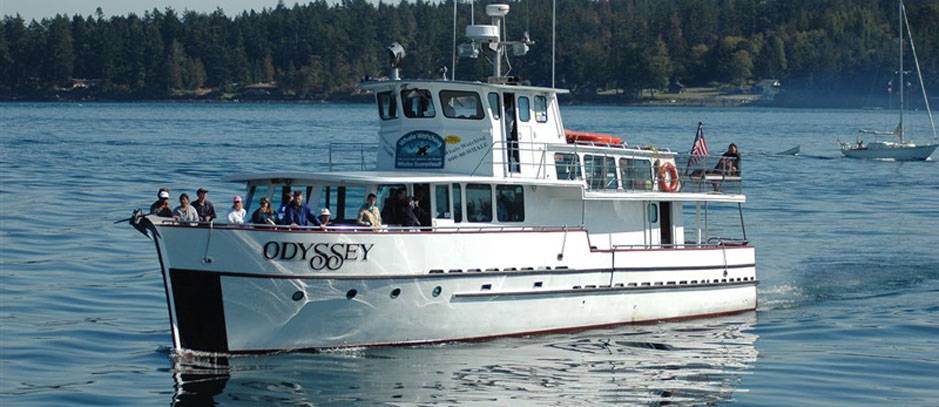
  2. Process (Programs, Tools, Skills):  I set up the gateway fold in Adobe InDesign. I split my layout into four sections with the concept that the two outer sections would be the flaps of the brochure and the two middle sections would be the ‘body’ of the brochure.  I used pictures of moving marine life to create visual flow.  I used the placement of my logo to create a clear focal point.  I made my text white to create good contrast against the blue background.

    I created the logo in Illustrator using a photograph for reference.  I used the Pen Tool to outline the basic shape of the fluke, then removed the photograph and refined my lines to give it a full, round look.

    I created the mask of the boat by using the quick selection tool in Photoshop, then refined the edges of the boat using the tool by the same name.  I finished this process by adding the changes to a new layer, then placed in into InDesign.  I then wrapped my text around the left side.

  3. Message:  Inform the public about my boat tours, giving them the necessary information to make an informed decision.
  4. Audience:  Anyone looking to spend time out at sea, and those looking to further their knowledge and love for the marine life there.
  5. Top Thing Learned:  How to wrap text around an image in InDesign.
  6. Color scheme and color names:  Analogous.  Teal, blue, and indigo
  7. Title Font Name & Category:  SignPainter/Script
  8. Copy Font Name & Category:  Minion Pro/Serif
  9. Word Count of copy:  268
  10. Thumbnails of Images used:
  11. Sources (Links to images on original websites):
    https://upload.wikimedia.org/wikipedia/commons/3/37/Killerwhales_jumping.jpg
    http://www.kickassfacts.com/wp-content/uploads/2014/01/Dolphins-620×330.jpg
    https://upload.wikimedia.org/wikipedia/commons/8/84/Humpback_whale_noaa.jpg
    http://www.watchwhales.com/2012/slideshow-images/5.jpg

Project 7: Web Page

Project Screenshot:

P7ChrisBazzleScreenshot

Description:

A web page designed to showcase a personally created logo for a fictional company.

Process (Programs, Tools, Skills):

I created this web page using Sublime Text Editor, where I utilized both HTML and CSS to create a web page that not only provided necessary information, but showcased my limited skill in web design.  I used hex codes to create a color palette that was appropriate for my logo.  I used the eyedropper tool in Photoshop to do this.  I changed my fonts to fit the design standard, then declared backups to account for viewing on various browsers.  I made sure that all of my code was up to the current standard, then used an online validator to ensure my code was valid.  Programs/Tools Used: Sublime Text Editor & Photoshop.

Message:

That my company Dumb Dog Designs is a resource for those looking for fresh digital designs.

Audience:

Anyone who is in the market for new digital designs, including logos, decals, etc.

Top Thing Learned:

How to style links in CSS.

Color scheme and color hex(s):

Monochromatic: #7a4a1e, #9e6c4a, #ffffff, #b77c4b, #e1c299

Title Font Families & Category:

Tahoma, Geneva, Sans-serif

Copy Font Families & Category:

Tahoma, Geneva, Sans-serif

Changes made to the CSS:

I changed the font families, page colors, added padding in some places, removed padding in others, added a comment, centered the image, and styled my link.

Word Count:

368 words describing my logo rationale.

Project 6 Stationery

Letterhead:P6ChrisBazzleLetterhead-01 Business Card (8.5 x 11 layout):P6ChrisBazzleBusinessCard-01-02 Business Card (large layout):P6ChrisBazzleLargeCard

  1. Description:  Matching business card and letterhead designed using an original logo.
  2. Process (Programs, Tools, Skills):  I created the logo using simple shapes in Adobe Illustrator. Once the logo was created, I opened a new two page InDesign document and placed my logo .AI file into this document.      Secondly, I created two 3×2 rectangles on the remaining artboard to mimic the basic shape and size of a business card.  I then copied/pasted the logo and contact information onto this page. I kept the logo and contact information about the same size as the information on the letterhead. I made sure that no important information came any closer than 1/8″ from the edges.

    For the letterhead, I positioned the logo near the left-middle of the top of the artboard.  I then typed my contact information into a text box and positioned it on the right hand side of the letterhead. I made both my name and phone number 20pt font to contrast with the 12pt contact information.  I also incorporated my color scheme into the name, and emboldened the number.  I added a larger transparent version of the branch as a watermark with opacity at 5%.  I used both Illustrator and InDesign.

  3. Message:  Blue Leaf Industries is a manufacturer of anti-itch creams and other high-end salves.  The blue hues represent a feeling of calmness, while the leaves represent natural ingredients and organics.
  1. Audience:  Anyone suffering from rashes, psoriasis, or other skin maladies.
  2. Top Thing Learned:  How to create a watermark, and how to use different creative cloud programs together.
  3. Color scheme and color names:  Monochromatic, blues.
  4. Title Font Name & Category:  Volkhov, Serif
  5. Copy Font Name & Category:  Tw Cen MT, Sans-serif